![Jirav-no-circle-two-color.png]](https://help.jirav.com/hs-fs/hubfs/Jirav-no-circle-two-color.png?height=40&name=Jirav-no-circle-two-color.png)
Capital Expense planning is done through the Prepaids & CapEx module. This module has two associated tables, Prepaids & CapEx Assets and Prepaids & CapEx Drivers, both of which are located in Plan > Drivers.
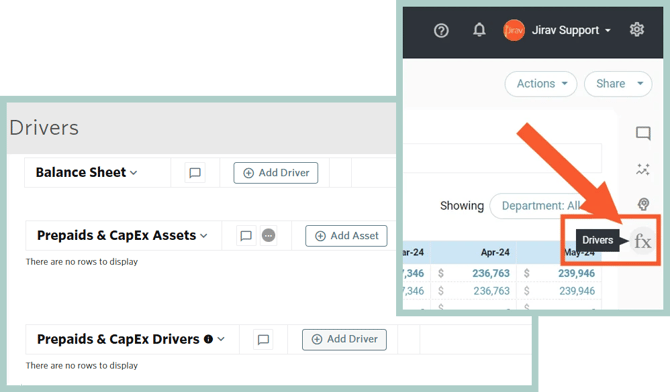
The Prepaids & CapEx Assets table allows you to define the characteristics of the asset to be purchased and the Prepaids & CapEx Drivers table determines when that asset should be purchased.
The output of this module will incrementally increase the Fixed Asset Balance Sheet account. It will also calculate the Depreciation schedule and map it to both the periodic expense line item on the Income Statement as well as the Accumulated Depreciation on the Balance Sheet.
In addition to Capital Expenditures, this module can be used to plan any amortizable asset, e.g., prepaid expenses.
Prepaids & CapEx Assets
Located in Plan > Drivers, this table is used to define the characteristics of the asset to be purchased.
To add a new Prepaid or Capital Asset, select (+) Add Asset button to the right of the Prepaids & CapEx Assets header.
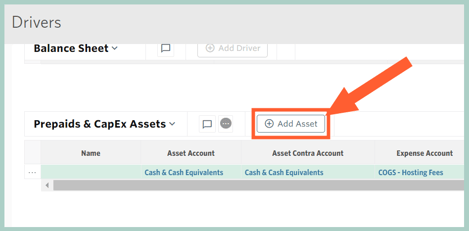
The fields available to define for the CapEx Asset are as follows:
- Name - specify the name which is later referenced in the Asset field for the Prepaids & CapEx Driver table
- Asset Account - choose the balance sheet account which should increase when the asset is purchased
- Asset Contra Account - choose the balance sheet account that should reflect the accumulated depreciation for the asset
- Expense Account - choose the income statement account that should reflect the periodic depreciation of the asset
- Expense Department - choose the income statement department that should reflect the periodic depreciation of the asset
- Amort Period - enter in months the asset should be amortized or depreciated over, e.g., if the asset has a useful life of 3 years enter 36
- Asset Cost - input the expected purchase price of the asset
- Residual Value - optionally enter the future value of the asset that you believe you can sell the asset for at the end of the asset life or amortization period
- Amort Delay - optionally input a delay in calculating the amortization after the purchase date, e.g., enter a 3 if you plan to put the asset in service 3 months after the purchase date
- Amortized Value - read-only system calculation that represents the total amount of the asset that will be amortized - it is calculated as Asset Cost - Residual Value
- Monthly Amortization - read-only system calculation that represents the monthly amortization reflected on the income statement & balance sheet - it is calculated as Amortized Value / Amort Period
- Dispose Asset - check the box to dispose of the asset from the balance sheet at the end of the useful life or uncheck the box to leave the depreciated asset on the balance sheet
Prepaids & CapEx Drivers
Located in Plans > Drivers, this table is used to trigger when a CapEx Asset will be purchased in the plan.
To add a new CapEx driver, select the (+) Add Driver button to the right of the Prepaids & CapEx Drivers header.
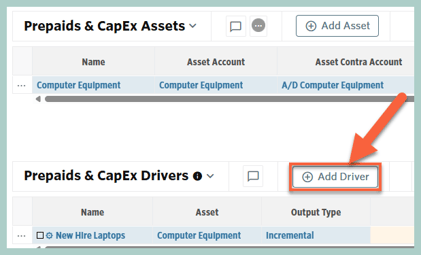
The fields available to define for the CapEx driver are as follows:
- Name - free text field - use a name that is meaningful to you, note that drivers are always sorted alphabetically by name
- Asset - choose the asset that should be purchased - this dropdown will populate with the Names of the assets added in the Prepaids & CapEx Assets section
- Output Type - Choose Incremental or Balance
- Incremental: Plans for the change in the BS account balances
- Balance: Plans for the ending balance of the BS accounts
- For example, let's say the balance of Fixed Assets in January is $10,000 and a $4,000 asset is purchased in February. If the Driver to purchase the asset is Incremental, the balance of Fixed Assets in February becomes $14,000. If the Driver to purchase the asset is balanced, the balance of Fixed Assets in February is $4,000.
- The following defines the formula to be calculated to trigger the purchase of the asset:
- Driver - First variable in the formula
- ƒx - Algebraic function to be used
- Rate - Second variable in the formula
- Round - Optionally choose to round the results of the calculation - for example, if the formula said to purchase 1.6 assets, you would likely prefer the calculation to round up to 2
- Frequency - Choose how often the formula should evaluate - for example, if frequency is 1, the formula will evaluate monthly, whereas a frequency of 12 would mean it only calculates once every 12 months
- Start - Choose when the formula should begin calculating - the default is Cutover Date, which means the formula will calculate beginning with the first month of the plan
- End - Choose when the formula should stop calculating - the default is Max Date, which means the formula will calculate through the end of the plan
- For example, if you wanted to trigger a new computer to be purchased for every new hire, you would set the Driver to New Headcount from the Staffing model, multiply by a Constant of 1, have a Frequency of 1, and Start/End of Cutover Date/Max Date.
- Description: Optional free text field
Additional Resource: Plan for a Capital Expenditure