![Jirav-no-circle-two-color.png]](https://help.jirav.com/hs-fs/hubfs/Jirav-no-circle-two-color.png?height=40&name=Jirav-no-circle-two-color.png)
Reports play a crucial role in simplifying the financial reporting process by providing up-to-date information to company stakeholders. Stakeholders can gain valuable insights from reports to help them make informed decisions.
Utilize Packages & Reports to customize your reporting packages then share the results.
-
Packages
-
Reports
-
Report Editing
-
Bulk Editing
-
Visual Comment Alerts
-
Publishing & Sharing
-
Unshare a published report
Packages
Create customized report packages that cater to different reporting needs. For example, you can have a "Month End Reporting Package" that you regularly share within your organization, showcasing the actuals from the previous month's close. Similarly, you can have a "Quarterly Review Reporting Package" that provides summarized results for your board presentations every quarter. These packages help streamline the reporting process and ensure that the right information is presented to the right audience at the right time.
To view existing packages or to add a new package, go to Report > Select the ∨ next to the currently selected package name to open the context menu and select Manage Packages.
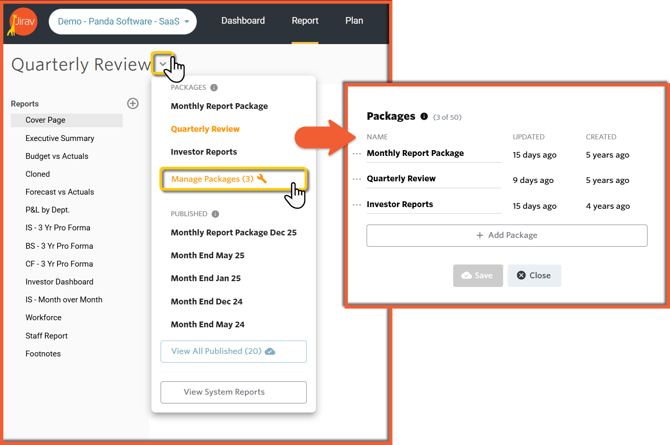
Helpful Hints:
- To simplify collaboration, reports are shared based on packages. It is recommended to create separate Packages for different audiences, making it easier to collaborate and share information effectively.
- An entire Report Package can be exported to a single Excel file with a tab for each report.
- Report Packages can contain a combination of tabular reports, text commentary, and visual dashboards.
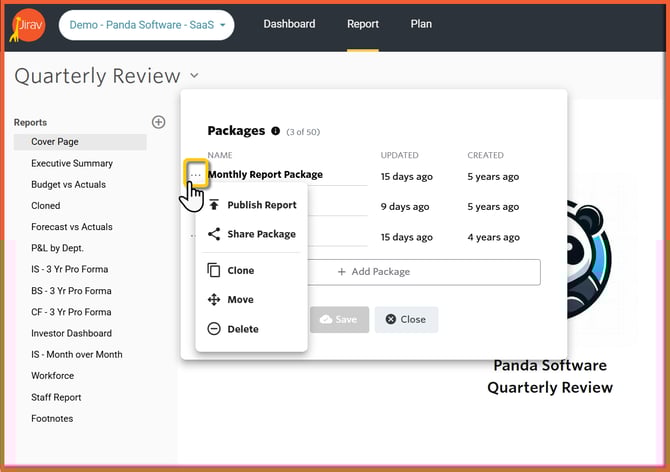
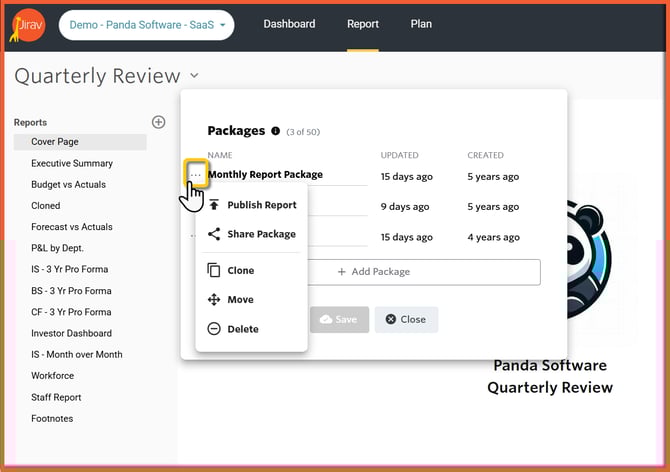
Once clicking on the three dots next to the right Package, you can customize Reporting Packages:
- Publish Report
- Share Package
- Clone
- Move
- Delete
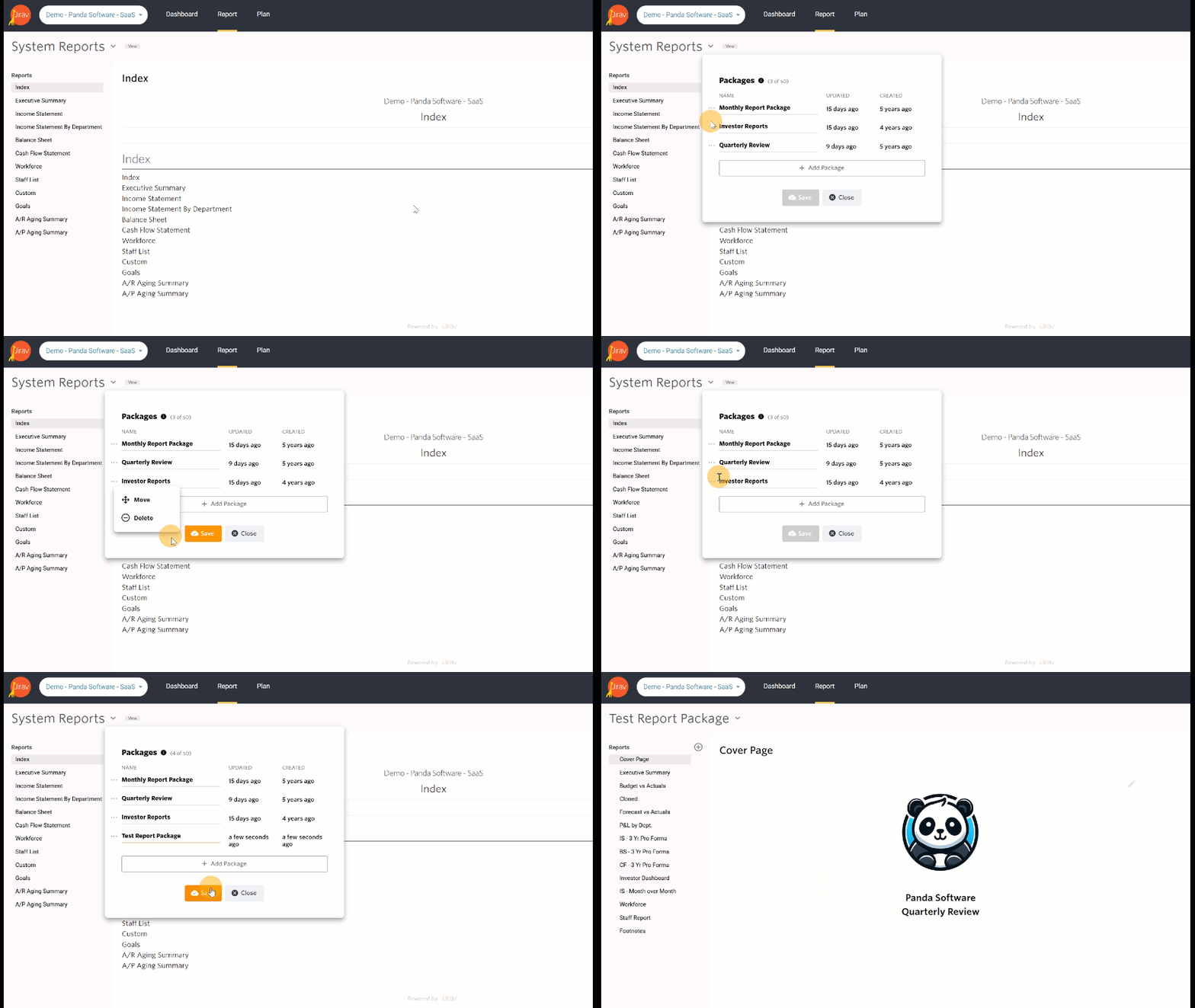
See an example of moving and cloning the Package:
Reports
Reports serve as building blocks for creating reports and can be seamlessly added to any Package. To incorporate Reports into your Package, simply access the Report Library, which offers a wide range of commonly used reports for financial planning and analysis.
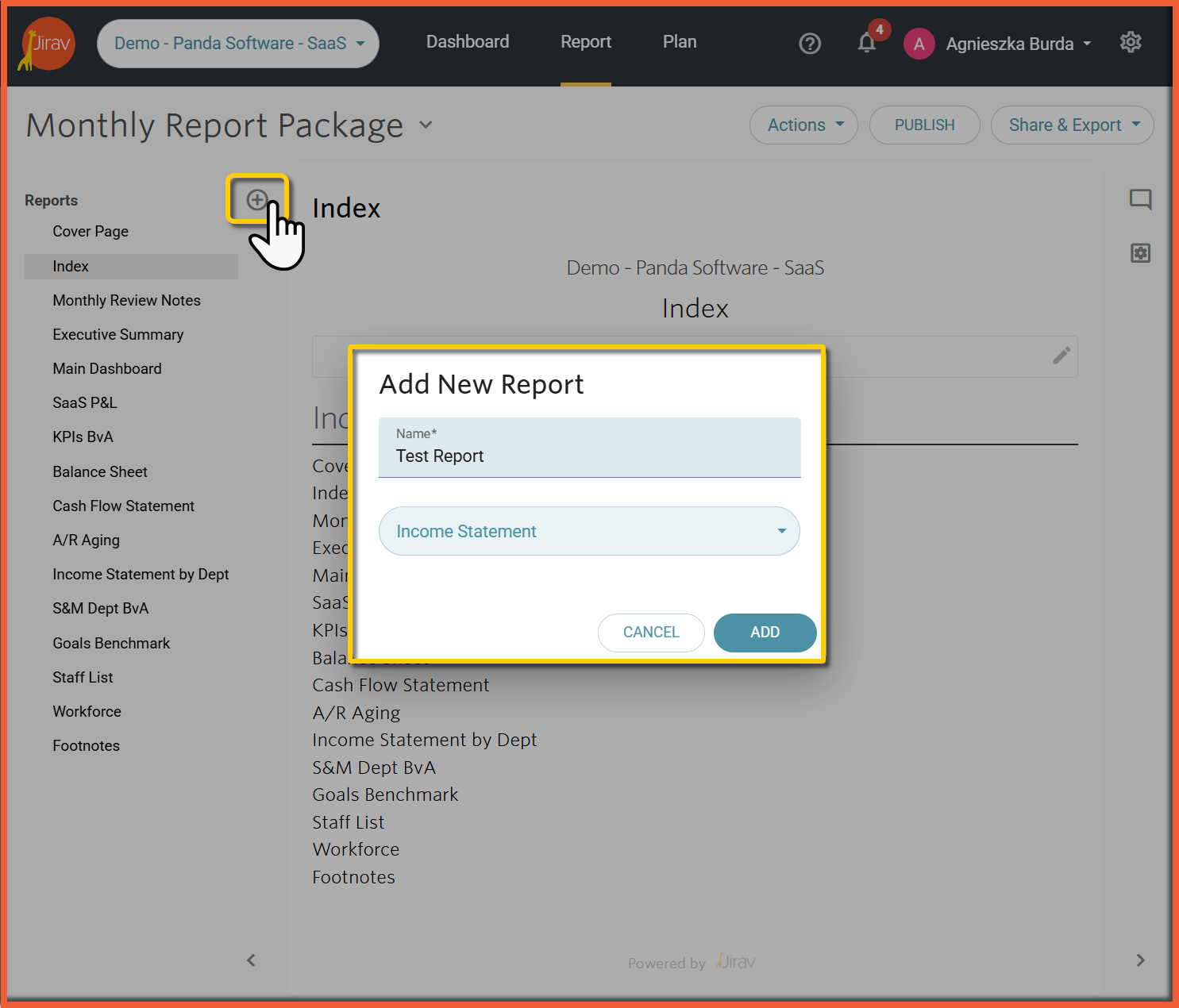
To add a Report to a Package, select the + to the right of Reports, name the new Report, choose a Report type, and select Add.
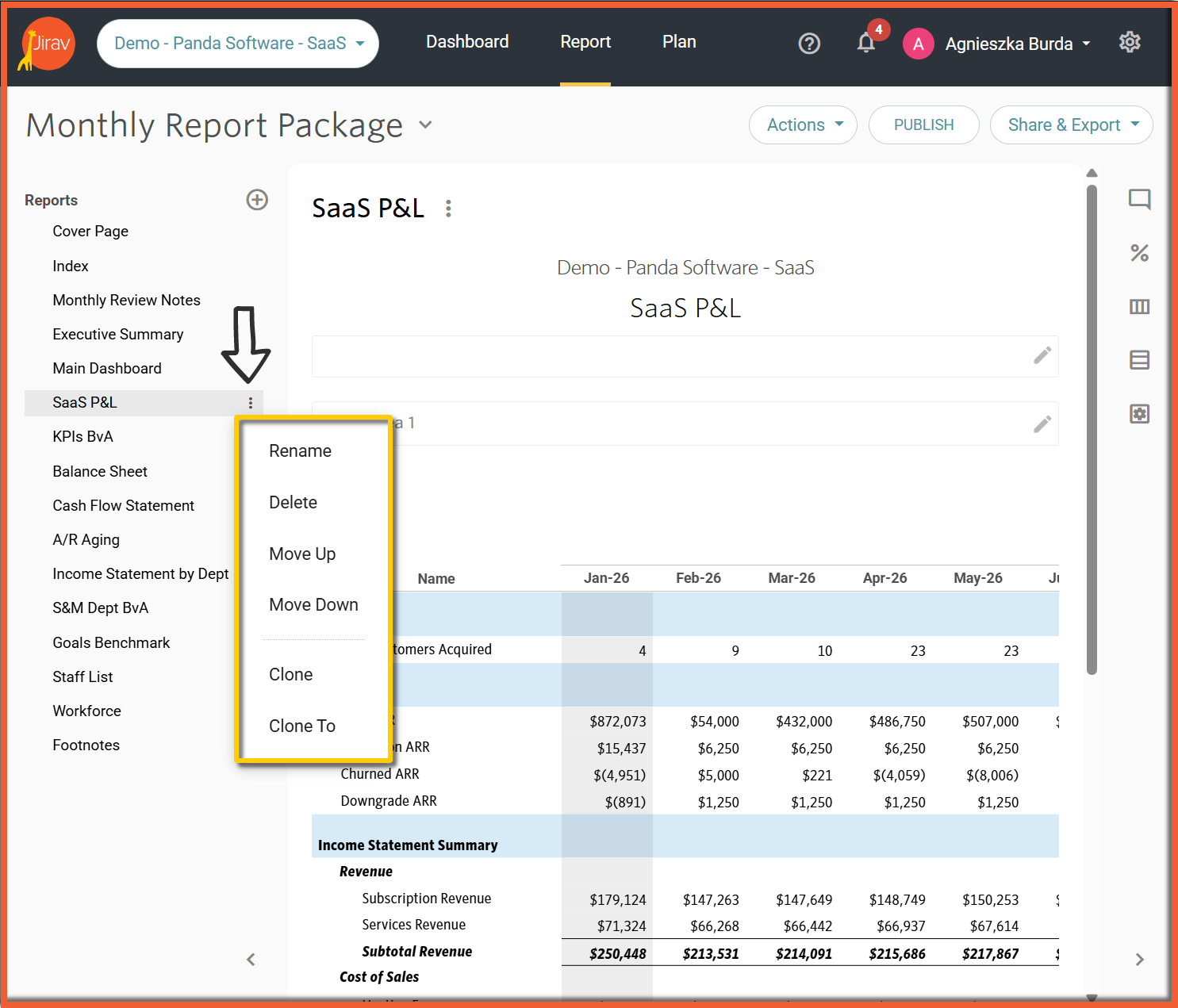
Existing Reports can be edited by hovering on the particular Report and clicking on the  next to it. Each Report can be:
- Renamed
- Deleted
- Moved Up
- Moved Down
- Cloned (within the same Report Package)
- Cloned To (to other Report Package)
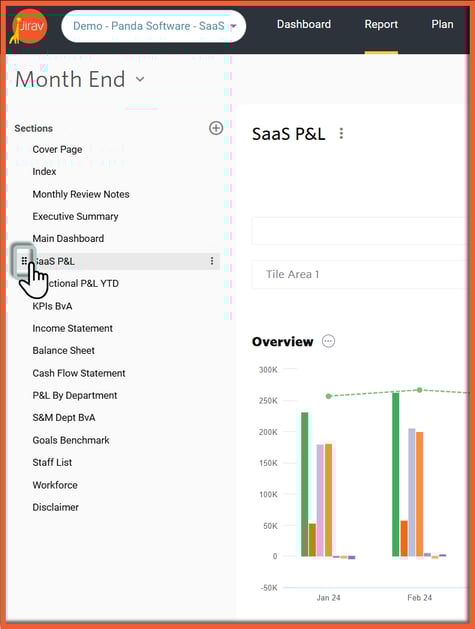
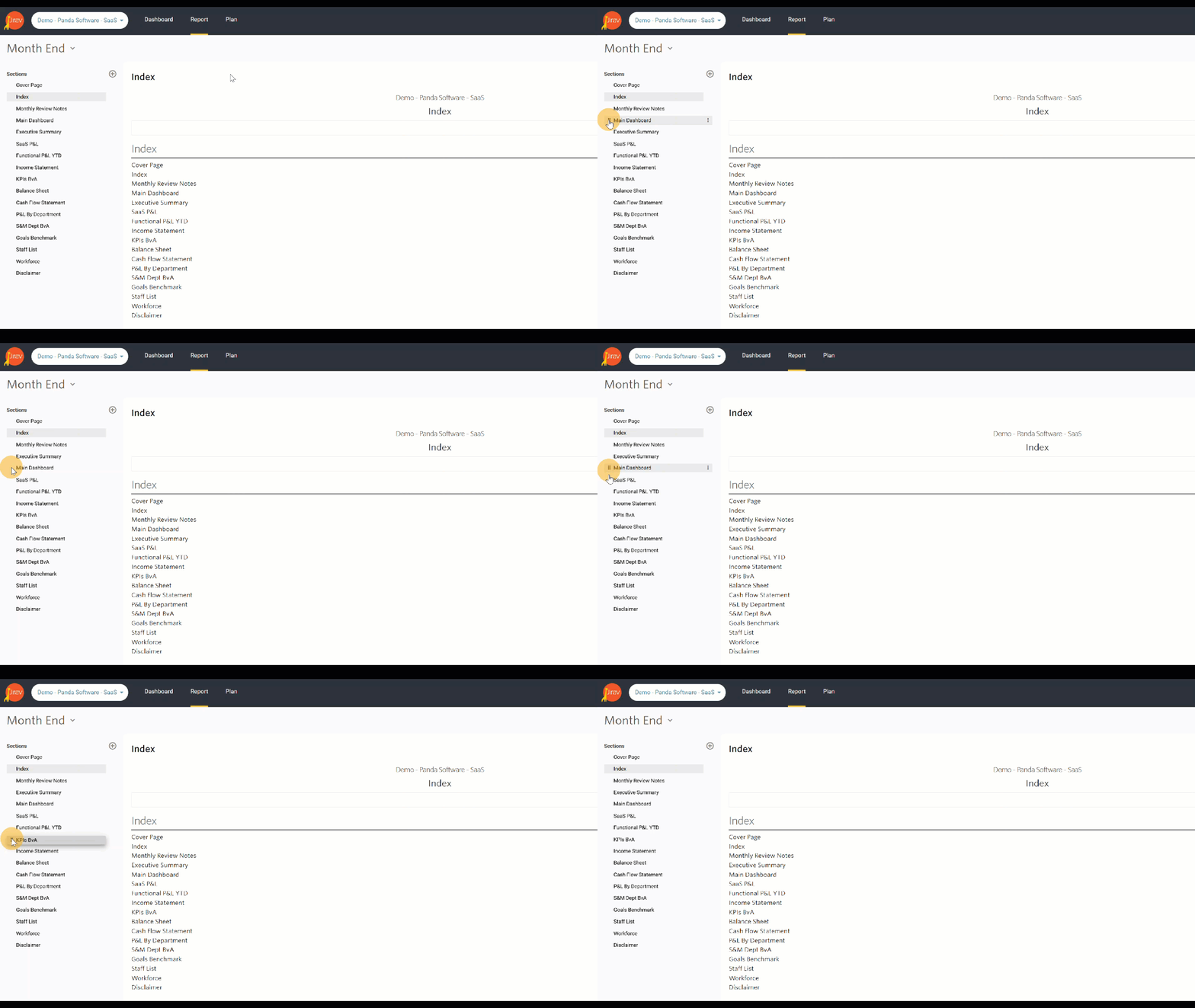
Reports can be easily reordered by dragging and dropping the  icon that can be seen upon hovering over the Report:
See example:
Report Editing
Each Report within the Package offers a range of options on the right side of the screen. These options allow you to customize the Report further according to your needs.
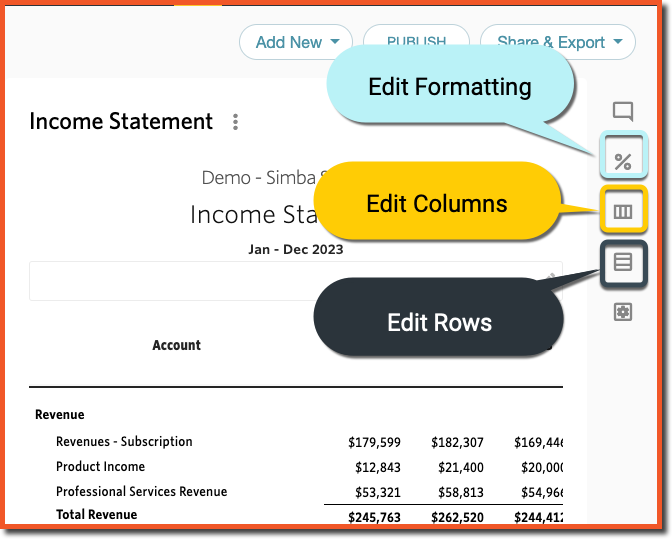
- Edit Formatting: Customize the font style, font color, fill color, decimal precision, display of negatives and errors, magnitude, symbols, and favorable/unfavorable variances.
- Edit Columns: Select the time periods and granularities, departments when applicable, and source(s) displayed in the report. Optionally add a notes column or variance calculations.
- Edit Rows: Controls which rows are displayed in the given report. Available row modifications vary by report type.
Helpful Hint:
- Time periods in Jirav are relative to the current calendar month and your company's fiscal year. For example, if today's date is June 28, 2023, a report showing YTD as of This Month for a company with a Jan-Dec fiscal year would show data for January - June 2023.
Bulk Editing
To perform bulk updates to a Package, navigate to Package Settings:
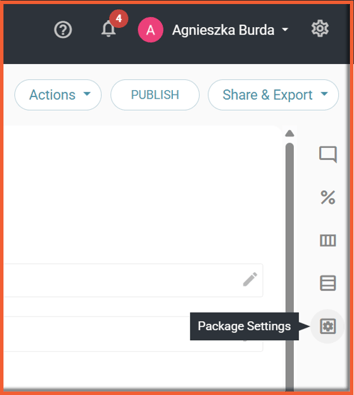
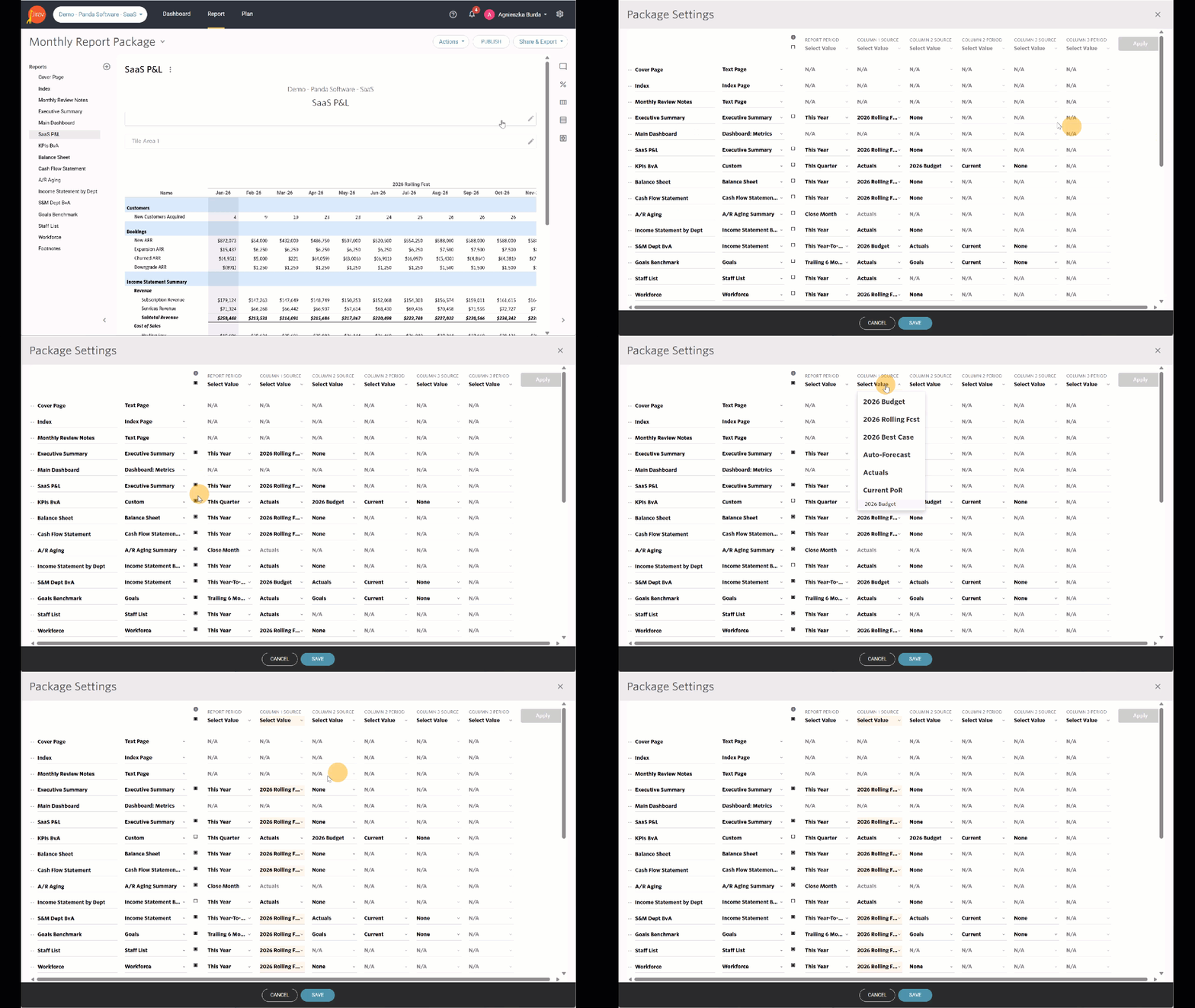
Bulk Edits allow:
- Add New Reports
- Clone, Move, and Delete the Existing Reports
- Adjust Report Period, Column 1 Source, Column 2 Source, and Column 2 Period, if applicable
- Work on the Report's Footer
Additional Resources: Report Packages
Visual Comment Alerts
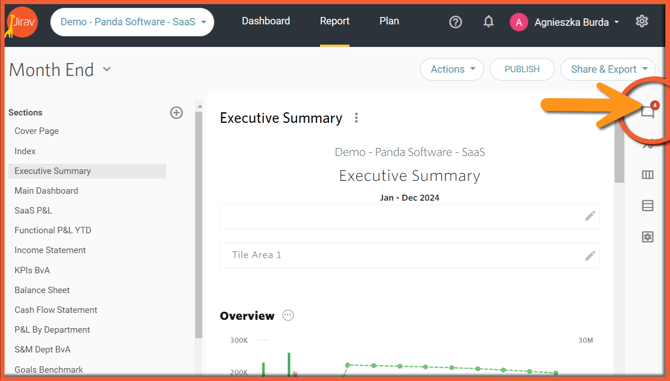
Receive visual alerts indicating the number of unread comments across all Reports of the application - once viewed, the visual alert will disappear.
Publishing & Sharing
Report Packages in Jirav are dynamic and always up-to-date. The Report Packages in Jirav are designed to automatically update based on their settings, ensuring that you always have the most up-to-date data readily available. For example, if you have set the report period as "This Year", on January 1st, the report will automatically update to display the data for the next year. By sharing a Report Package, you grant users access to the live data, allowing them to stay informed with the latest information.
Publishing a Report Package allows you to capture a moment in time and create a static version of the Report Package. This is especially useful when you want to share the results with others while ensuring that the information remains unchanged. By publishing the Report Package, you can have complete confidence in knowing exactly what was shared, providing clarity and accuracy to your audience.
A published Report Package looks exactly like the live package except that it cannot be edited and the data in the published package will not change even if the underlying data in the live Package changes. Report Packages can be published as many times as desired and are saved to a different folder than the live Packages.
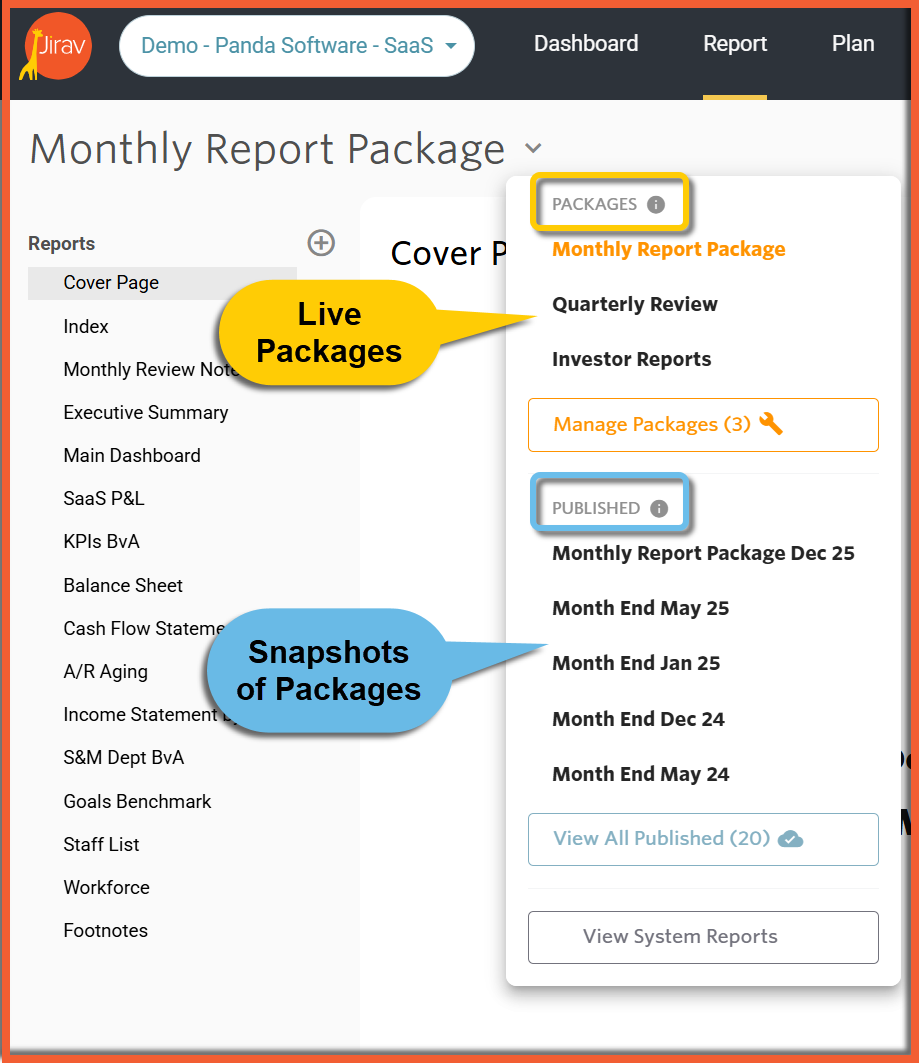
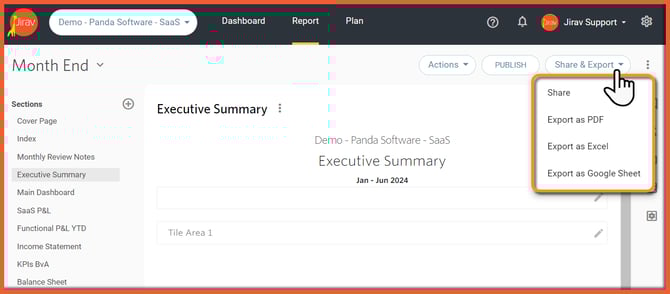
Live or published packages can be shared directly through Jirav, or exported to PDF, Excel, or GoogleSheet. Sharing through Jirav requires a secure login to access the data.
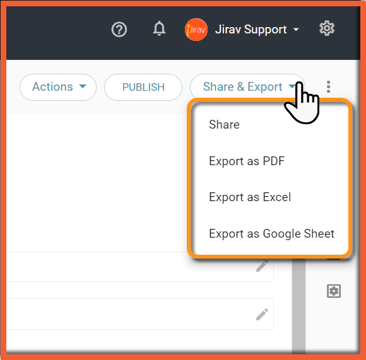
Unshare a Published Report
Begin by selecting the "Share & Export" button and then "Share"
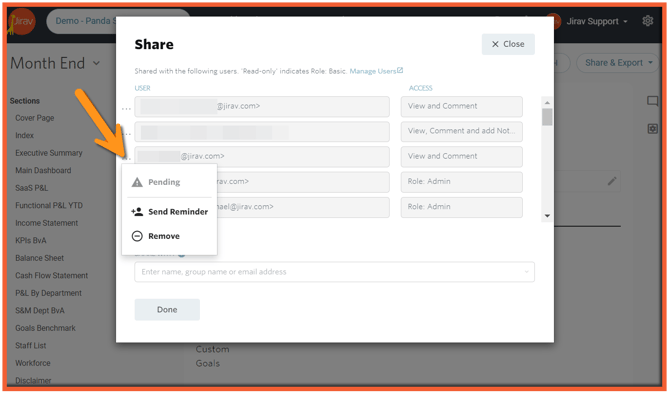
You can then see who the Dashboard or Report has been shared with:
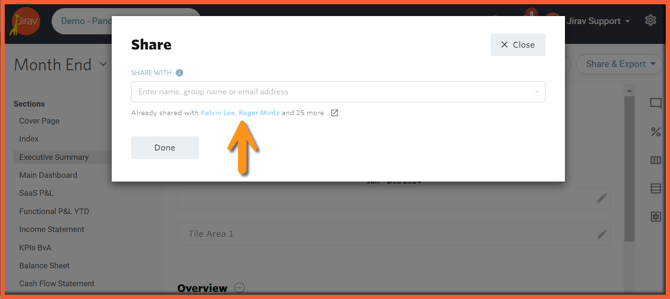
Click on the names listed and the following pop-up will appear. You can then Manage the Users: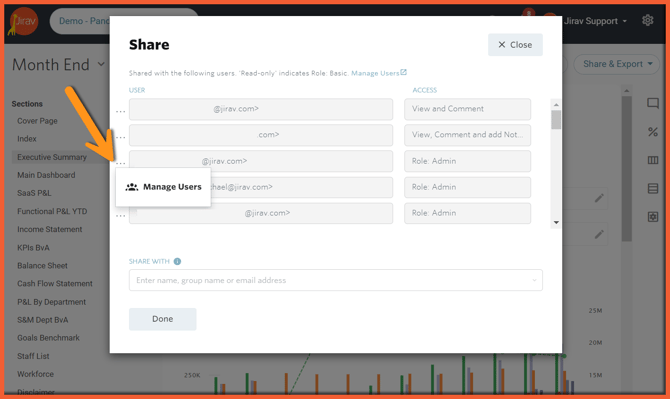
or Send a Reminder, or Remove a User that is only a Basic type User:
Additional Resources: